Featherfolk user guide
11 steps. Each step lists exactly which parts it uses.
What's in the box12 parts
 ABase
ABaseRound white dish. Birds eat from it.
 BPerch
Blue ladder. Birds stand on it.
 CMiddle wall
Curved white wall. The camera comes already fitted inside it.
 DCamera
Black box with the lens.
 ERoof
ERoofBlue lid that goes on top.
 FScrewdriver
Cross-head screwdriver.
 GScrews
Bag of screws. The small ones (PA3×10) hold the feeder together; the long ones fix the arm and stand to a wall or post.
 HGreen wall plugs
Push these into drilled holes in brick or concrete so the screws grip. Not needed for wood.
 IWhite arm
Holds the feeder out from a wall or post. The manual calls it the “camera bracket”.
 JBlack stand
Holds the solar panel. The manual calls it the “panel bracket”.
 KSolar panel
Charges the camera. Has its own cable with a screw-cap plug.
 LShort black cable
Runs from the camera, out of the back of the feeder, to the solar panel's cable.
You also need: a memory card (128 GB max), your phone with the app, and a drill for a wall. The white USB cable in the box is a backup way to charge the camera; you don't need it to assemble.
Build and install
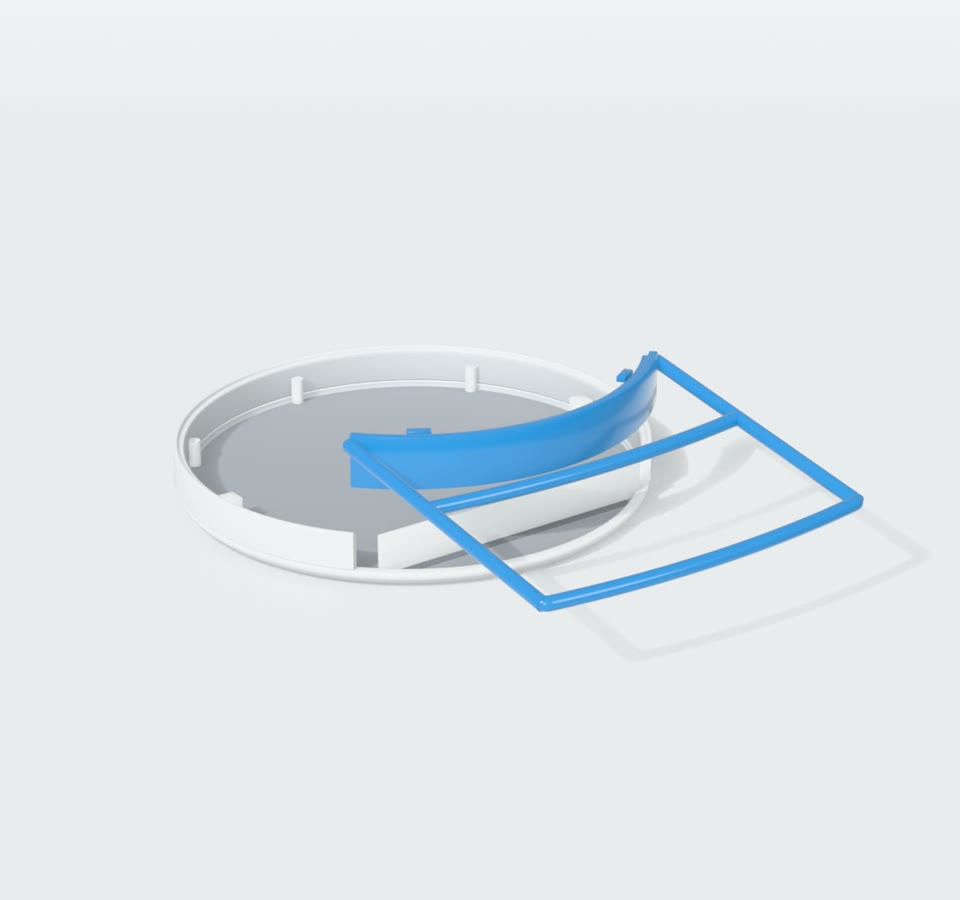
 ABase
ABase BPerch
- Push the blue perch down into the gap at the front of the base, following its curve (match the arrow mark).
- Two small buttons sit at the gap. Push them outward to lock the perch.
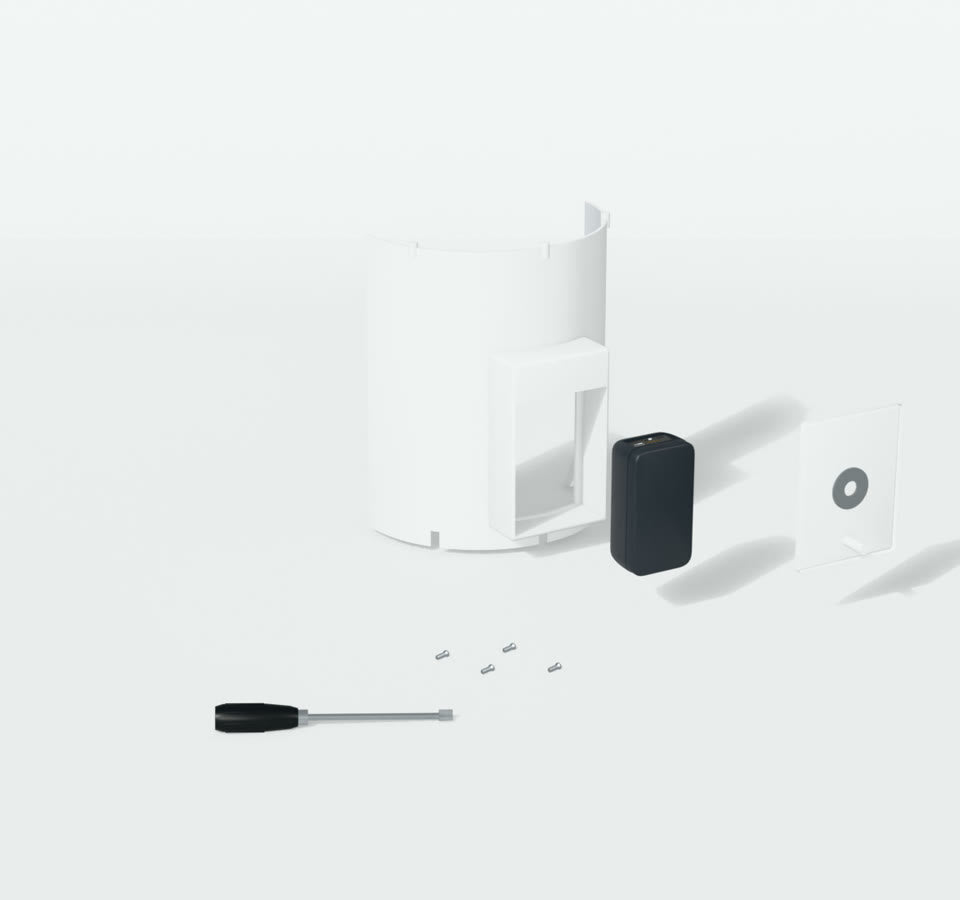
 CMiddle wall
 DCamera
 FScrewdriver
- The camera arrives already fitted inside the middle wall.
- Undo the screws on the back of the wall and lift the camera out.
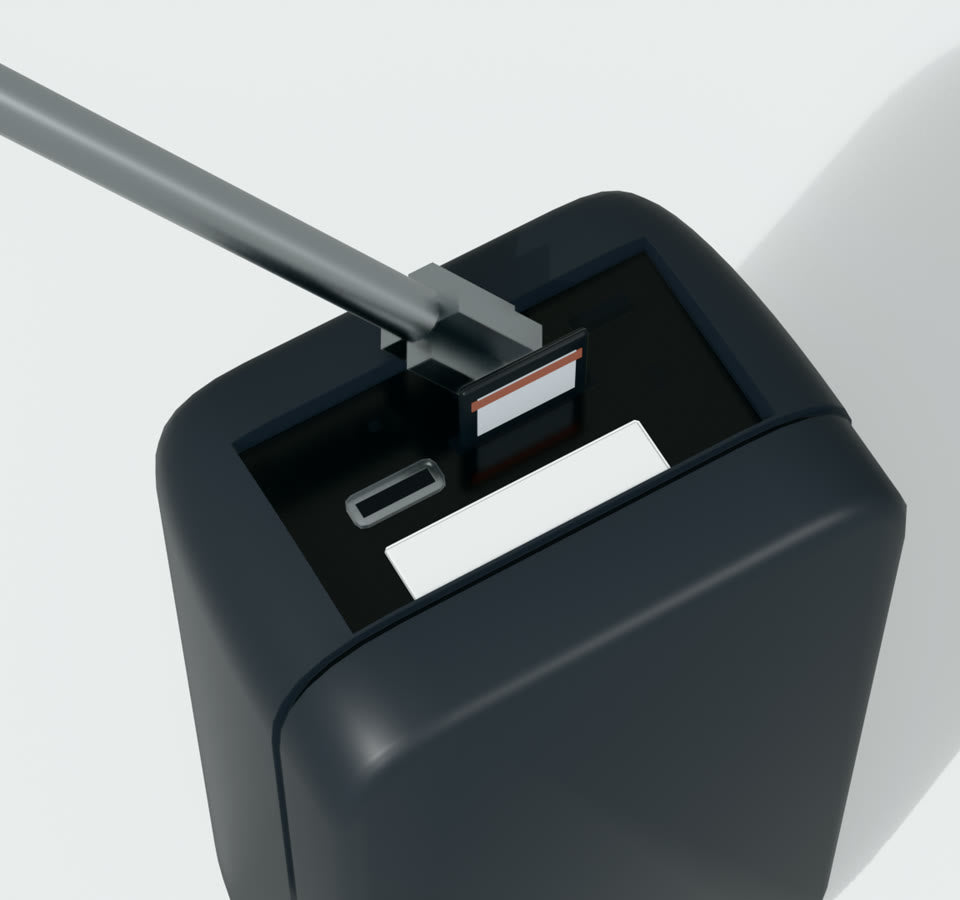
 DCameraFScrewdriver
- Turn the camera round so you see its back.
- Press POWER with the tip of the screwdriver, then press RESET.
- Push the memory card in.
 DCamera
- Install the free iCam365 app from the App Store or Google Play. Create an account with your email (it sends you a code) or sign in.
- Stand near your router and connect your phone to your 2.4 GHz Wi-Fi.
- Wait for the camera to say “Camera startup, wait for user config”. If it doesn't, press RESET again.
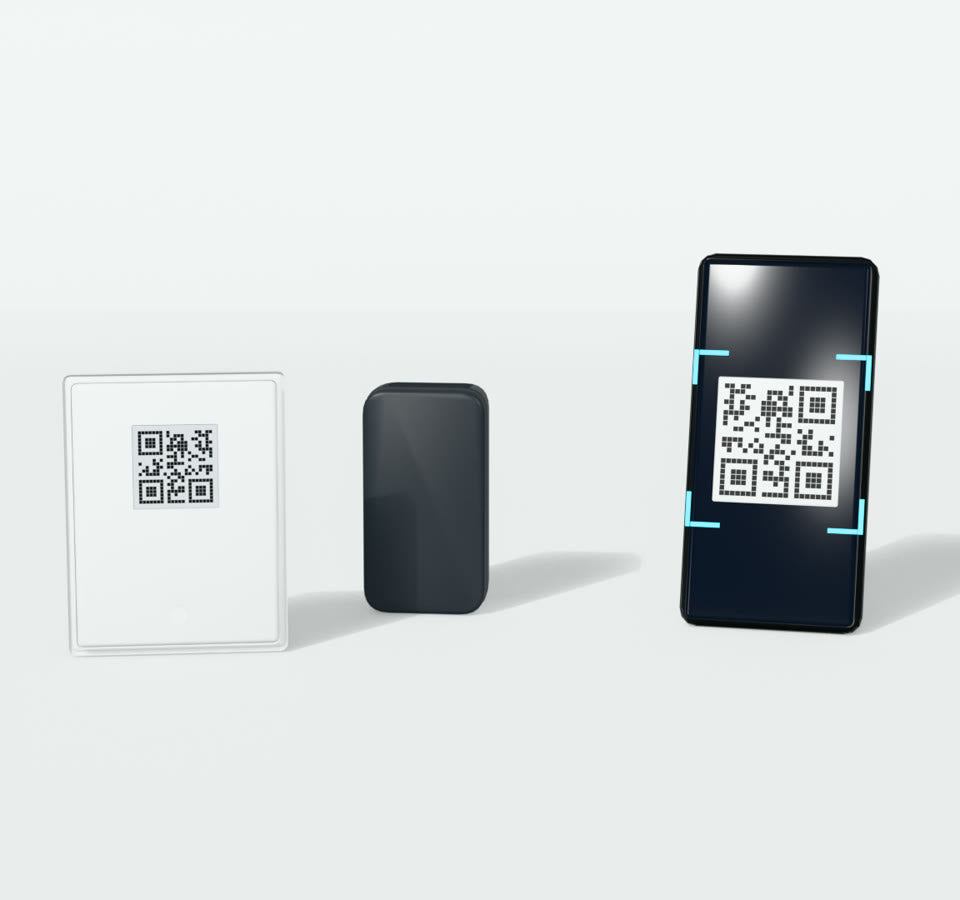
- In the app, tap + (Add). Turn over the white back cover you unscrewed in step 2 and scan the QR code on its inside. Allow location if asked.
- Pick your 2.4 GHz Wi-Fi, type the password and tap Next.
- The app shows a QR code. Hold the phone screen about 20 cm (8 in) in front of the camera lens until it beeps and says “Receive configuration, connect router”.
- Tap “I have heard the beep”, then Next. Keep the phone, camera and router close while it connects.
- When it says “Device added successfully”, give the camera a name. The cloud storage offer is optional; you can decline it.
 CMiddle wallDCamera
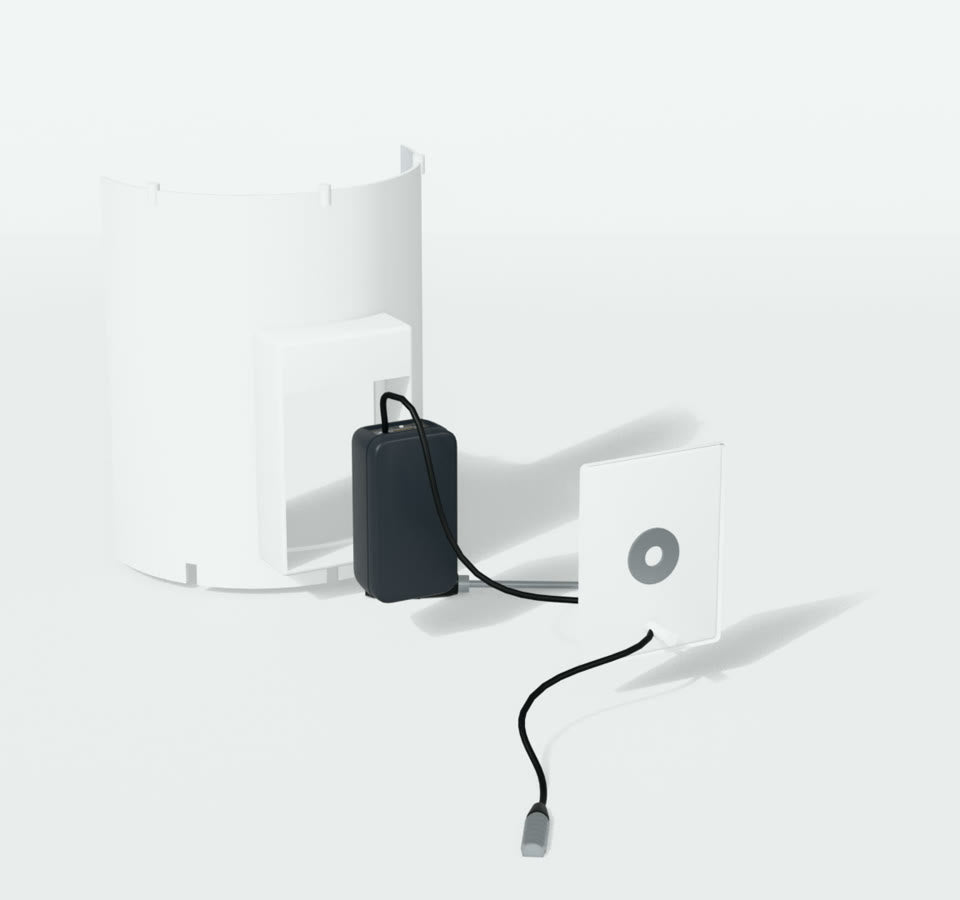
 LShort black cableFScrewdriver
- Plug the short black cable into the camera.
- Feed the other end through the small hole at the back of the middle wall.
- Screw the camera back into place.
 ABaseCMiddle wall
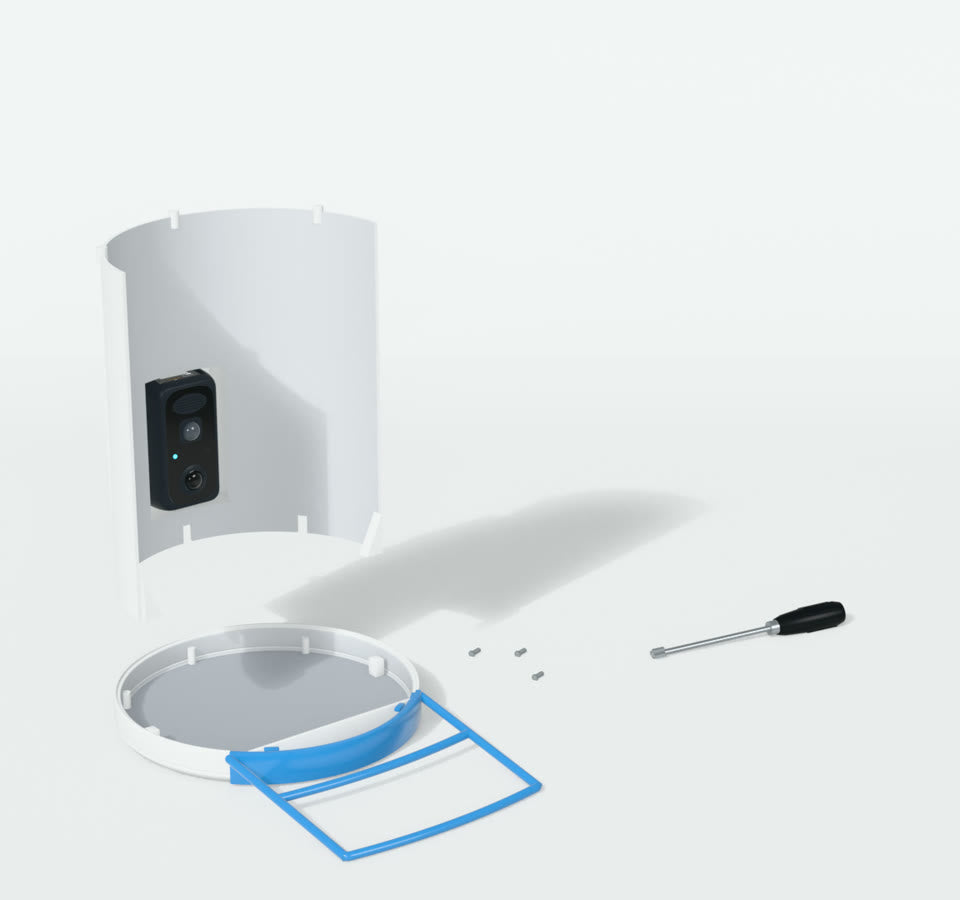
 GScrewsFScrewdriver
- The bottom of the middle wall has 3 holes. The base has 3 little posts sticking up.
- Line the holes up with the posts and screw them together with the small screws.
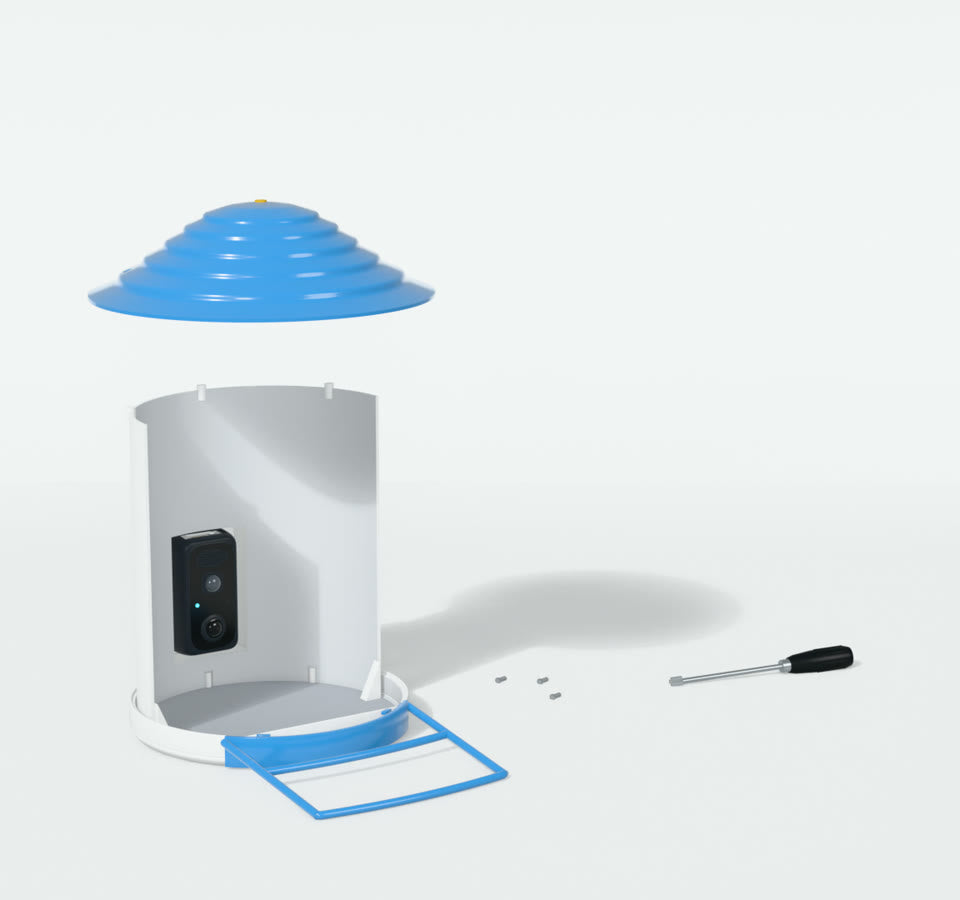
 ERoofGScrewsFScrewdriver
- The roof has 3 holes. The top of the middle wall has 3 posts.
- Line them up and screw them together with the small screws.
 IWhite armGScrews
 HGreen wall plugsFScrewdriver
- Pick the spot. The feeder will hang off the end of the arm, so leave room in front of the wall.
- Hold the arm's round foot flat against the wall or post, with the arm pointing straight out.
- Wood: screw the long screws straight through the holes in the foot. Brick or concrete: drill, push in the green plugs, then screw.
- Don't fit the feeder yet.

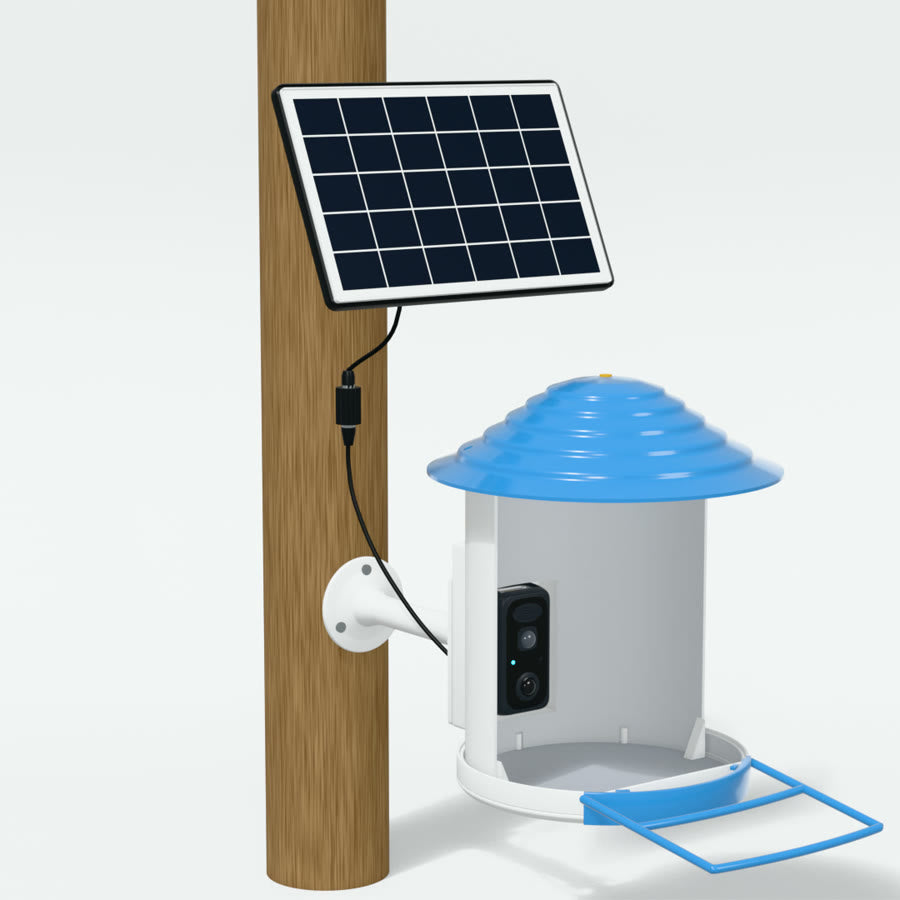 IWhite arm
- The back of the feeder has a small plate with a threaded hole.
- Put the tip of the arm into that hole and turn the whole feeder until it is snug.
- If the feeder ends up tilted, loosen the joint near the arm's tip, level it with the perch facing away from the wall, then tighten.
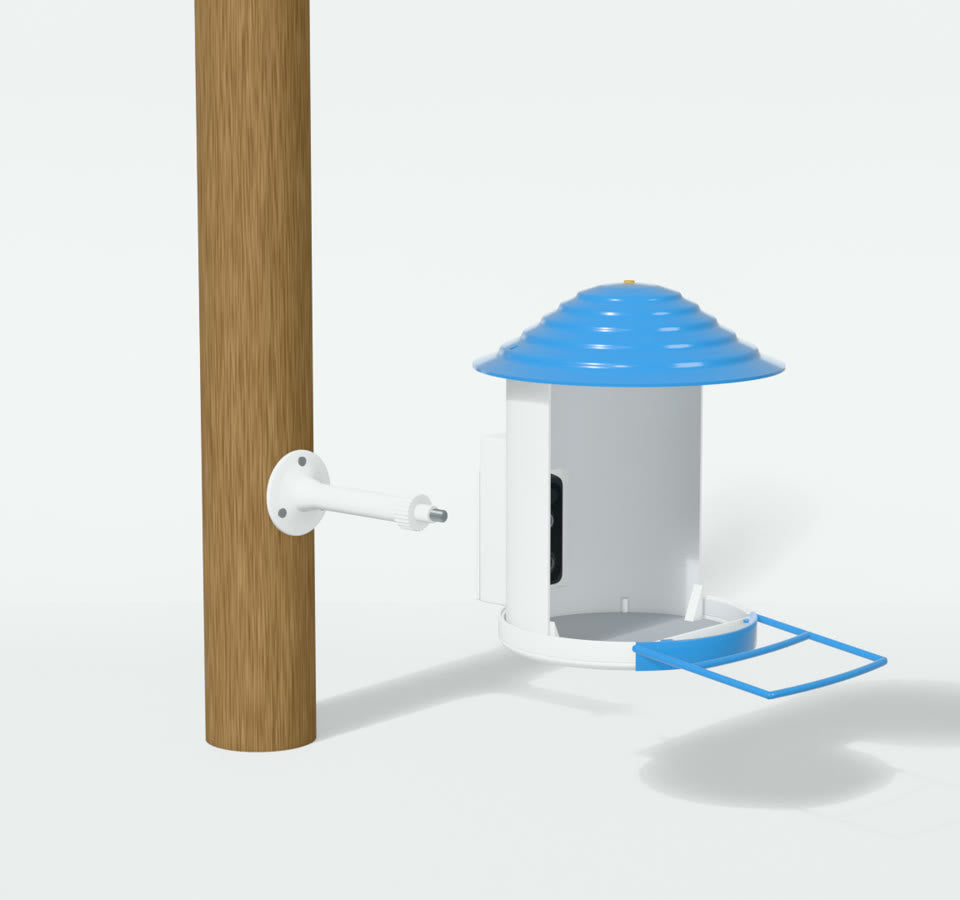
 JBlack stand
 KSolar panelGScrewsHGreen wall plugs
- Screw the black stand's tip into the socket on the back of the solar panel.
- Fix the stand's round foot to the wall or post near the feeder, where the panel gets sun. Use the same screws and plugs as before.
- Angle the panel toward the sun and tighten the black knob.
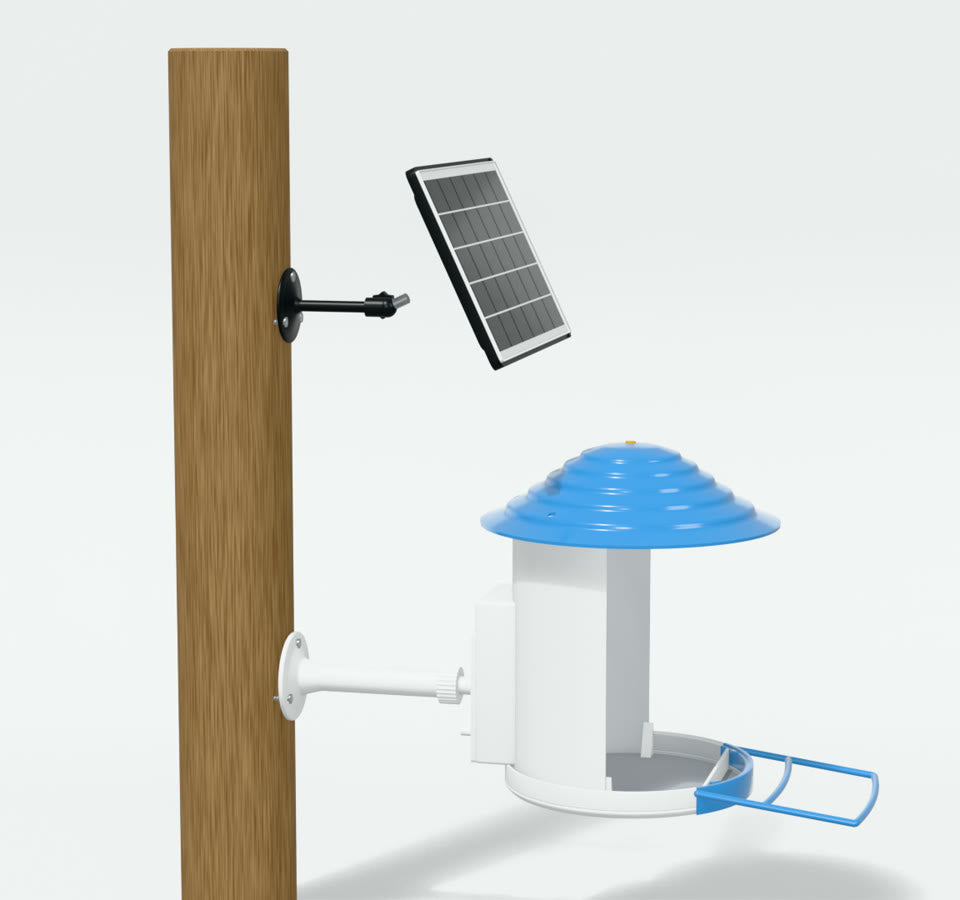 KSolar panelLShort black cable
- Plug the cable coming out of the back of the feeder into the solar panel's cable.
- Screw the cap on the plug tight.
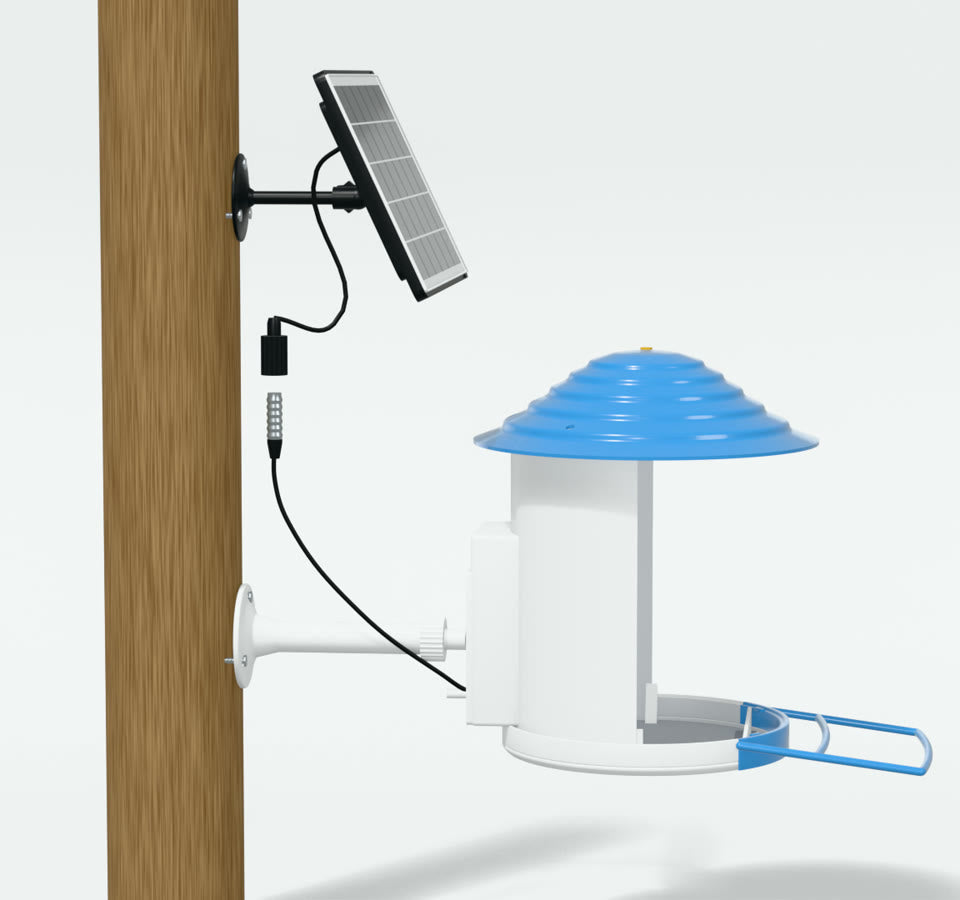
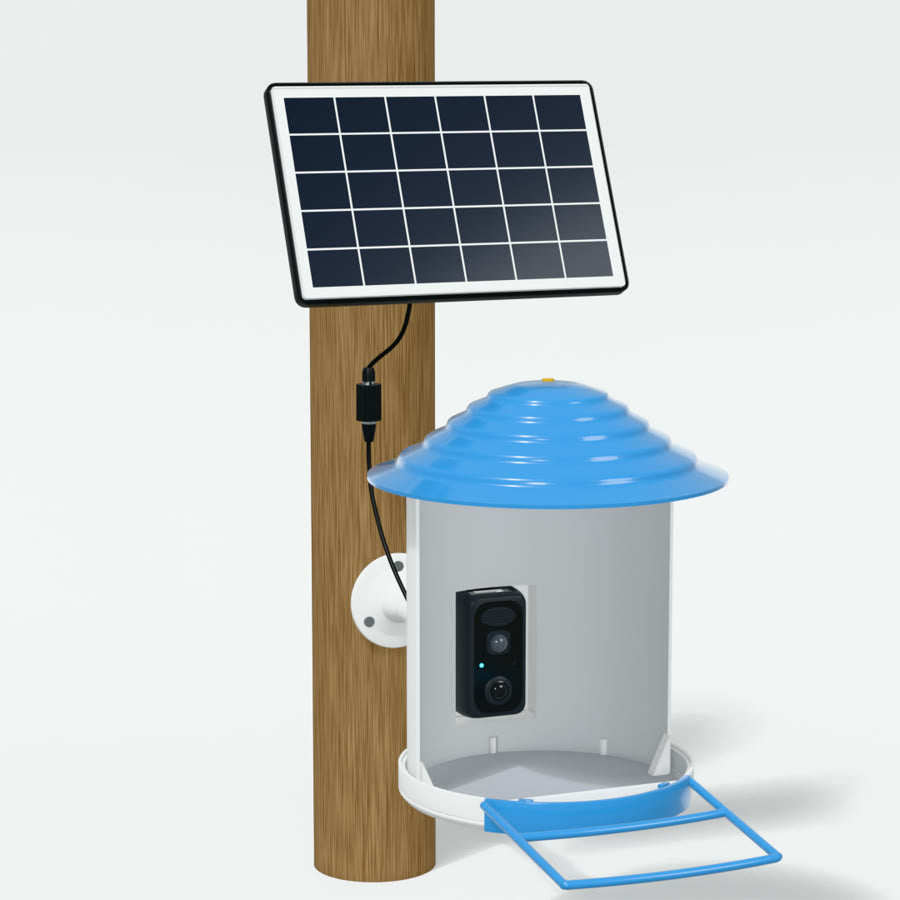
Using the iCam365 app
- Tap the camera in the app's device list to open live view.
- Press and hold the microphone button to speak through the feeder's speaker.
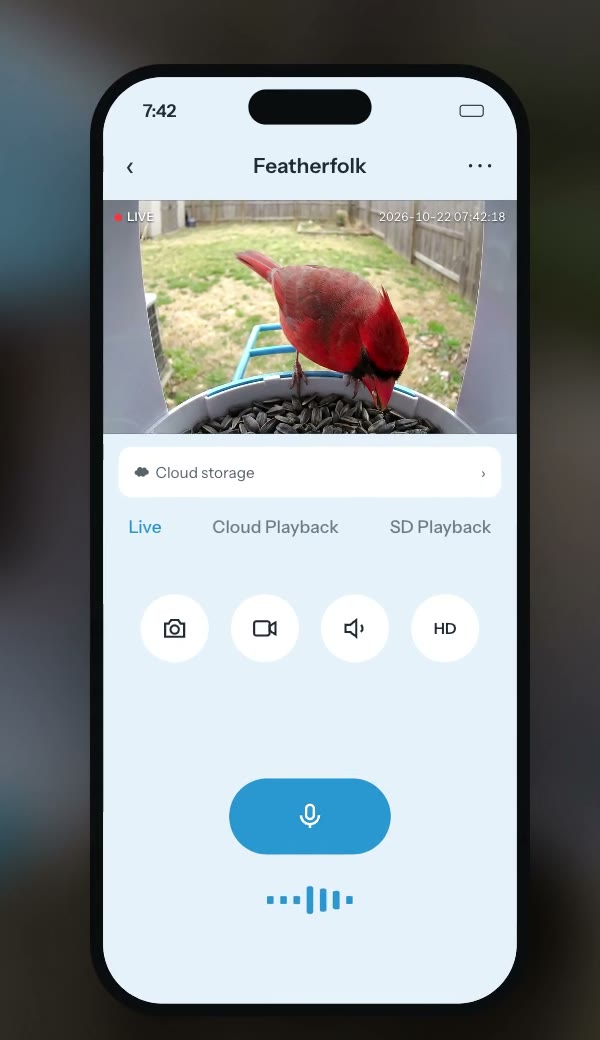
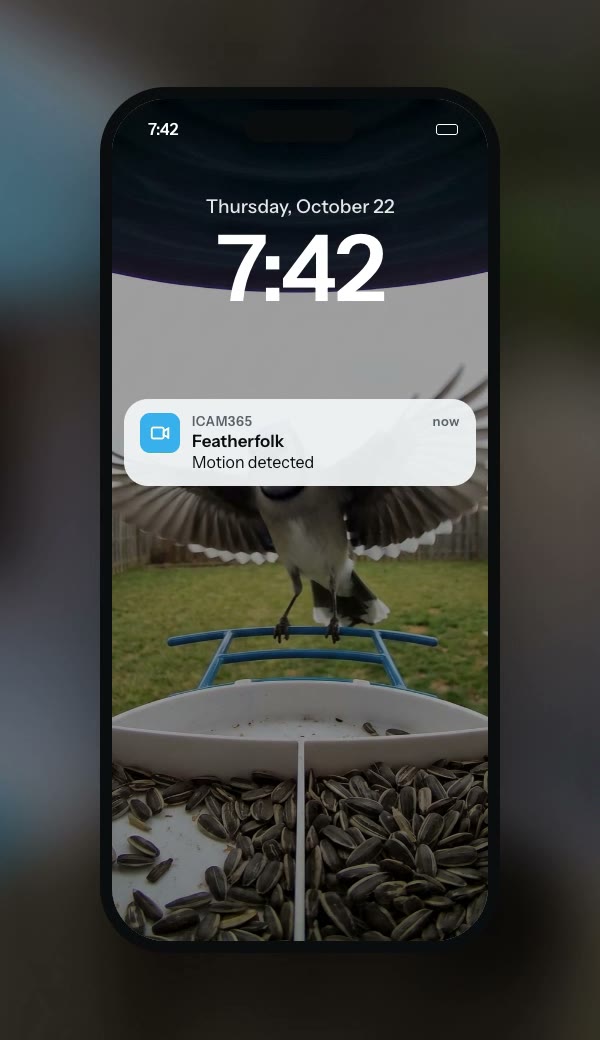
- Allow notifications for iCam365 when your phone asks.
- When the motion sensor picks up a bird, the camera records a clip and sends you an alert.
- Open the camera's settings to change motion sensitivity, clip length (20, 40 or 60 seconds), night vision and speaker volume.
- In the camera's settings, check the memory card status. If it shows no card, restart the camera from settings, then check again.
- You can format the card from the same screen.
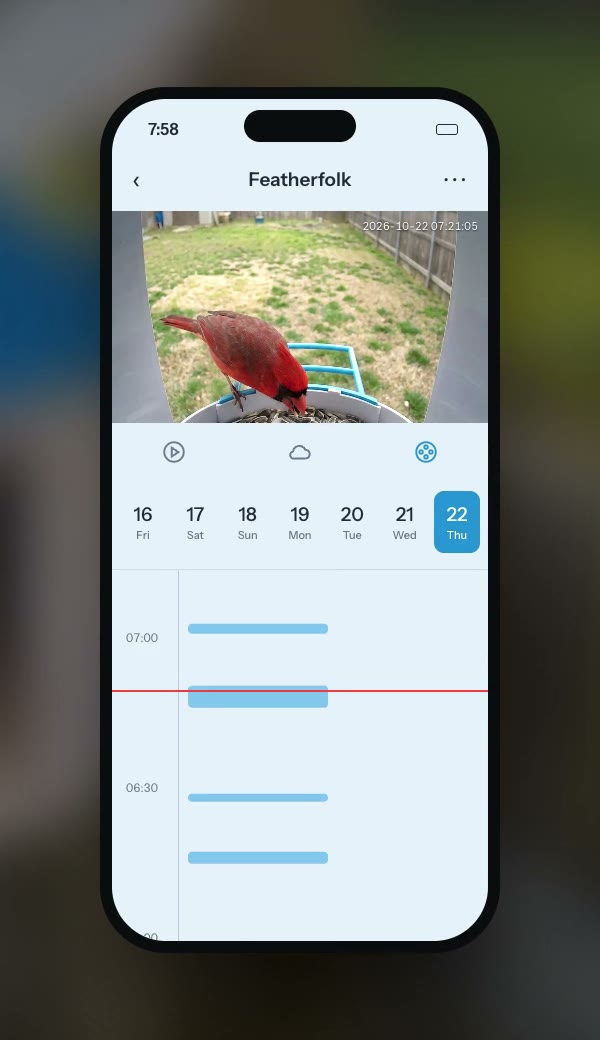
- Tap SD card playback to watch saved clips.
- Share the camera from the app so others can watch on their own phones, up to 8 accounts.
- Each person installs iCam365 and signs in with their own account.
- Use a 2.4 GHz network. 5 GHz does not work. If your router uses one name for both bands, give the 2.4 GHz band its own name.
- Check the Wi-Fi password, then try again closer to the router.
- Hold the QR code steady, about 20 cm from the lens, in good light.
- Press RESET on the back of the camera, wait for “Camera startup, wait for user config”, and start again from tap +.
- Restart your router and the camera, then try again.